Photo tips for a clean AI cutout
Which photos give the cleanest automatic cutout, why some photos confuse the AI, and how to fix a cutout that is not perfect.
The AI in Layr looks for the main subject of a photo and separates it from the background. It is very good at this, but some photos are easier than others. A few simple choices when you take or pick a photo make the cutout almost perfect.
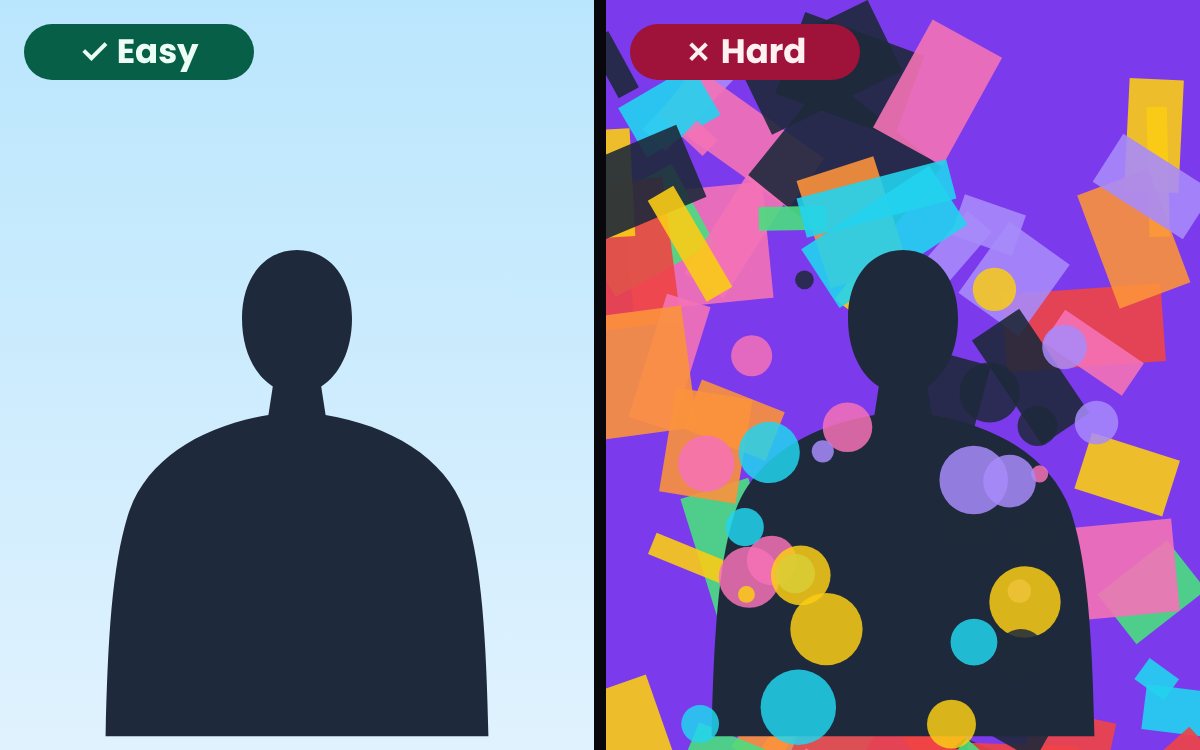
Photos the AI loves
- One clear main subject: a person, a car, a product, a pet.
- Contrast: the subject looks different from the background — a dark jacket against a light sky, a red car against a grey wall.
- Sharp focus on the subject. A slightly blurred background (portrait mode) actually helps.
- The whole subject in frame, or cut cleanly at the edge of the photo (for example, at the waist).
- Good light from the front or side. Strong backlight can make edges glow and harder to separate.
Photos that confuse it
- Busy digital art and posters, where everything is bright and detailed. The AI was trained mostly on real photos, so drawn outlines and neon shapes can look like part of the subject.
- Subject the same colour as the background — a white shirt against a white wall.
- Many overlapping people or objects. The AI has to guess which one is "the subject".
- Very fine details like flyaway hair against a busy background, or a bicycle's thin spokes.
- Glass and transparent objects, which take colour from the background.
Easy fixes before you upload
- Step back a little so there is space around the subject.
- Move the subject away from walls and clutter, or change your angle so the background is plainer (sky is ideal).
- Crop out other people or objects that are not part of the design.
- Use the highest-quality photo you have, not a screenshot of a screenshot.
Fixing the cutout in the editor
If the AI misses something or picks the wrong thing, you do not need to start again. Press Fix cutout in the editor. While fixing, the subject is tinted pink so you can see exactly what will cover the text.
- + Add object: tap anything the AI missed — a hand, a bag, a second person. A second AI model selects the whole object from one tap.
- - Remove object: tap anything that should not cover the text, such as a lamp post behind the person.
- Paint in / Paint out: a brush for small details. Change its size with the slider.
- Zoom in with a pinch on a phone, or the mouse wheel on a computer, for fine edges. The brush becomes more precise as you zoom.
- Undo and Reset are always there if something goes wrong.
The Edge solidity slider in the side panel controls the edges: towards "Soft" keeps fine hair natural; towards "Solid" makes a subject that looks see-through fully solid.
Try a photo →Free · runs in your browser · photos never uploaded
Why the first cutout takes longer
The first time you use Layr, your browser downloads the AI model (about 44–90 MB, depending on your device). It is then saved in your browser, so the next photos start in seconds. Read how in-browser AI cutout works for the full story.
More guides
 How to put text behind a person in a photo (free, no Photoshop)A step-by-step guide to the popular "text behind subject" effect: what it is, why it works, and how to make it in a minute in your browser.6 min read
 12 text-behind-photo ideas for Instagram, WhatsApp and postersTwelve practical ideas for the text-behind-subject effect — for birthdays, travel, sports, sales and more — with tips on which word, font and colour to use.7 min read
 Text-behind-photo ads for small businesses: car dealers, cafés and shopsHow small businesses can make eye-catching photo ads for WhatsApp, Instagram and Facebook with the text-behind-subject effect — no designer needed.7 min read